Back to guides 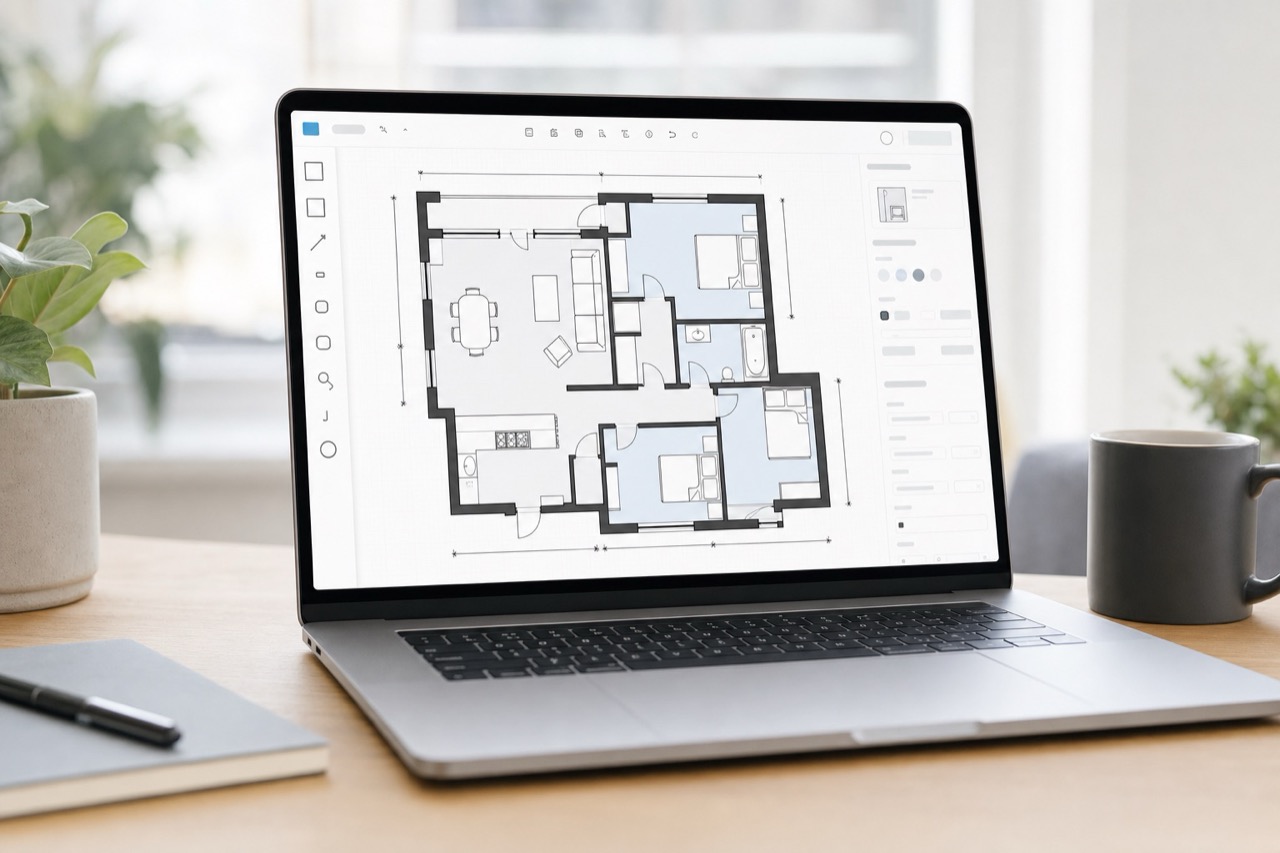
Web guides
Web floorplan editor
Use the desktop editor for precise wall, opening, room, dimension, and presentation cleanup after field capture.
Open editorSteps
1
Load the project plan
Open the editor from the workspace or a project link and confirm the floor plan, floors, and pano points load correctly.
2
Make precise edits
Adjust walls, openings, rooms, labels, dimensions, layers, and presentation details using the desktop workspace.
3
Save for downstream use
Save edits back to the shared project state so exports, tours, and app pull flows use the corrected result.
Checks
The editor loads floor and plan data.
Pano point positions remain visible on the map.
Save status confirms the project state was stored.
Troubleshooting
Canvas is blank
Check whether the project has published floorplan data and whether the current route includes the correct project id.
Pano points disappeared
Check the project state adapter and make sure tour anchors are preserved when saving edits.