Back to guides 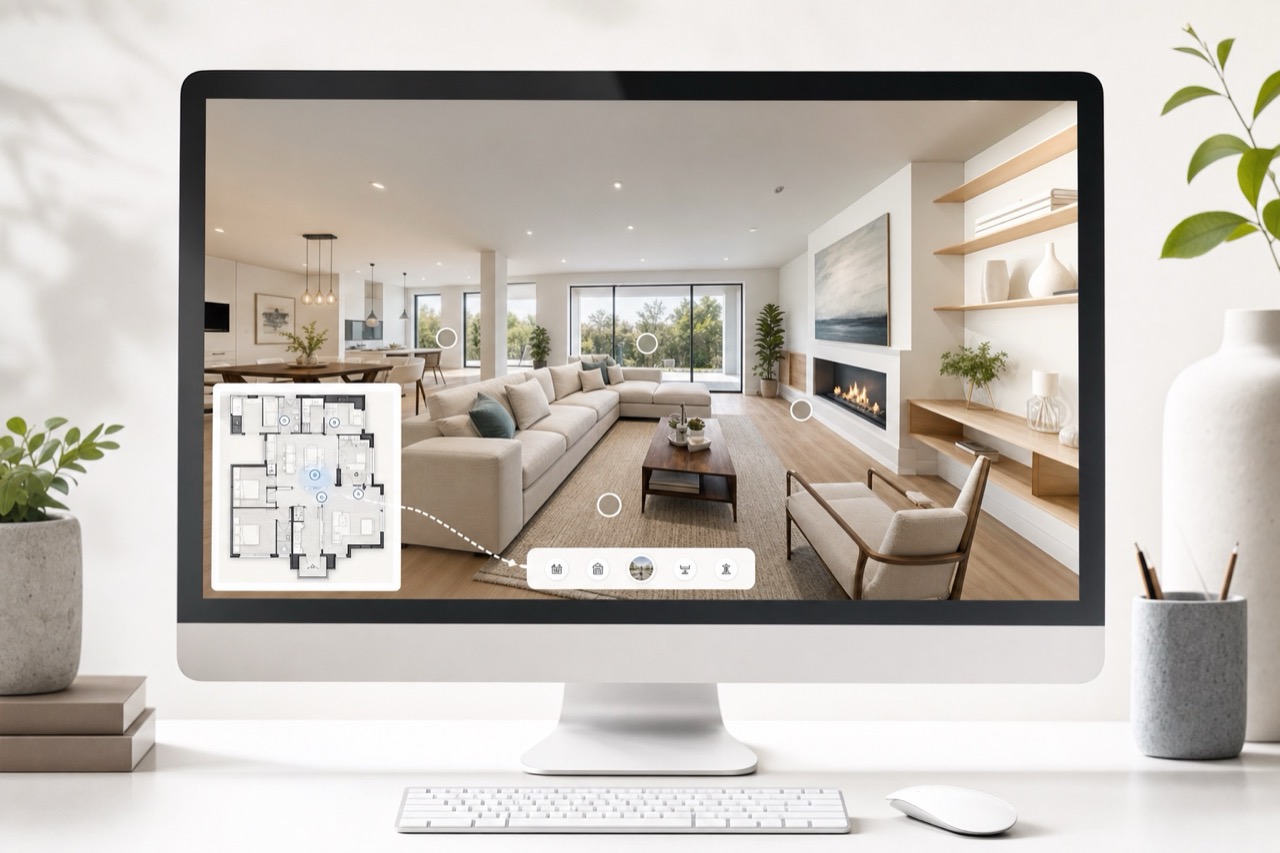
Web guides
Web 360 tour and sharing
Review pano points, floor-map context, navigation links, and public sharing from the same project state.
View 360 toursSteps
1
Open the tour view
Open the project tour and verify that pano images, floor map, and active point all describe the same place.
2
Check navigation
Move between points, floors, and map markers. Confirm heading and link behavior before creating a public share.
3
Publish a public link
Use sharing only when the project is ready. The public route should expose published tour data without requiring a private session.
Checks
Pano images load without blank frames.
Floor-map selection follows the current pano point.
Public links only show published data.
Troubleshooting
Tour image fails to load
Check asset links, pano processing status, and whether the image was included in the publish step.
Heading feels wrong
Check camera orientation and heading calibration before sharing the tour with a customer.